Share Links
Share Links let you share reports with stakeholders through secure, customizable URLs with flexible access control.
Overview
Share Links provide:
- Three access modes for different security requirements
- Live or frozen data: re-run the report on every open, or keep the results from when the link was created
- Expiration dates for time-limited access
- Password protection for sensitive content
- View notifications when links are opened
- View counts and an audit trail of every access
- Link management to edit, revoke, or delete shares
What are Share Links?
Share Links are URLs that let you distribute reports to team members, clients, or external stakeholders, including people without a TestPlanIt account.
Key Use Cases
- Client Reporting: Share test results with clients using password-protected links
- Public Dashboards: Distribute metrics openly for transparency
- Team Collaboration: Share reports with team members who have project access
- Stakeholder Updates: Provide weekly or monthly reports via expiring links
- Release Sign-off: Share a frozen report that keeps the numbers the team signed off on
Share Modes
Authenticated Mode
Requires viewers to sign in. For a project report, viewers need access to the project. For a cross-project report, viewers need Admin access.
When to use:
- Sharing with team members
- Internal stakeholder reports
- Sensitive data requiring authentication
Behavior:
- A live link opens the report in the full app with its configuration restored
- A frozen link opens the read-only frozen report
Public Mode
No authentication required. Anyone with the link can view the report.
When to use:
- Public dashboards
- Open data sharing
- Non-sensitive metrics
Behavior:
- Minimal page with no application navigation
- Read-only report view with the full report data
Security: Anyone with the link can see everything in the report. Use it only for data you are comfortable publishing.
Password-Protected Mode
Anyone with the link and the password can view the report.
When to use:
- Client reports
- Partner collaboration
- Confidential external sharing
Behavior:
- Password gate before any report data loads
- Signed-in users with access to the project skip the password
- 5 failed attempts per link lock further attempts from the same IP address for 15 minutes
- After the correct password, access lasts one hour in that browser tab
Live and Frozen Data
Every report share link is either live or frozen. You choose when you create the link; the choice cannot be changed afterwards.
- Live (default): the link stores the report's settings and runs the report again each time it is opened, so viewers always see current data.
- Frozen: the report runs once when you create the link, and the link shows those exact results every time it is opened. The numbers never change. To share newer data, create a new link.
A date range chosen from the picker's presets, such as Last week or Last 14 days, can stay relative on a live link: the range moves with the date the link is opened, using the timezone of the person who created the link. When you create the link, a Date range choice offers Relative (the default) or Fixed dates, which keeps the dates the range covers today. A custom start and end date are always fixed. The viewer names a relative range and the dates it covers right now, for example "Last week · Currently reporting: Sep 14, 2026 – Sep 20, 2026". A frozen link keeps the dates the report ran on when it was frozen and shows them as "Reported:".
A frozen report shows when it was frozen and who froze it, in the viewer's date and time format.
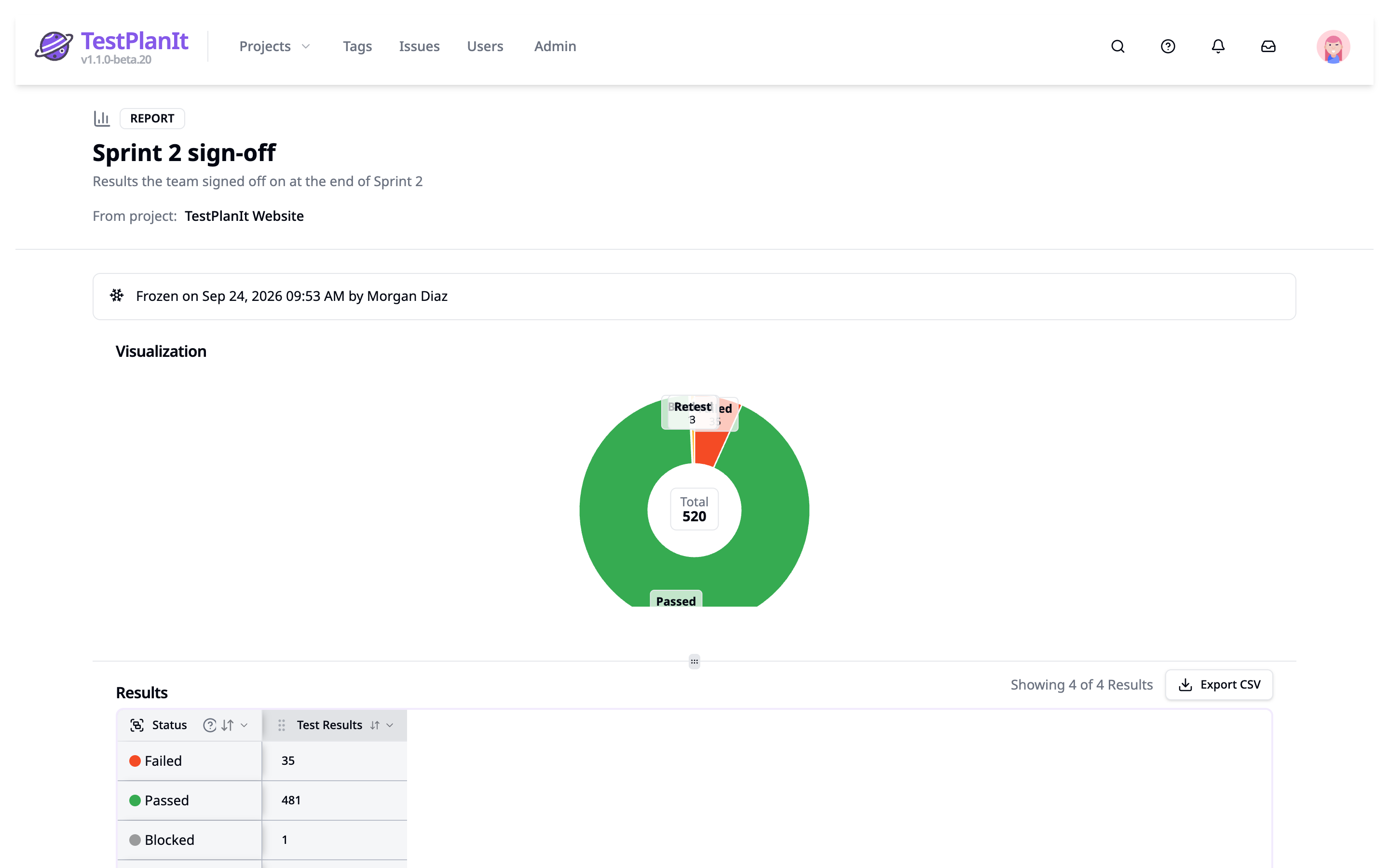
Frozen links:
- Work in every access mode. Authenticated viewers see the frozen results instead of being sent to the live Reports page.
- Support sorting, grouping, column visibility, and CSV export on the stored rows.
- Do not support drill-down.
- Stop working when the link is revoked, expires, or is deleted, like any other share link.
- Show Frozen in the Data column of the share lists.
Freezing a report requires the Reporting add/edit permission on the project. The report runs with your permissions, so it holds what you can see.
Row Limit
A frozen report keeps up to 10,000 rows by default. Administrators can change the limit with the REPORT_SNAPSHOT_MAX_ROWS environment variable. If a report has more rows, a confirmation shows the total and the limit. Select Save to freeze a copy that keeps only the first rows, or Cancel to go back. The frozen report then states how many rows it kept out of the total.
Creating Share Links
From the Reports Page
-
Run your report
- Open the project's Reports page (or Administration → Reports for cross-project reports)
- Choose a pre-built report or build one in the Report Builder
- Set the date range, dimensions, metrics, and filters
- Run the report
-
Select Share
- The share icon is in the report toolbar
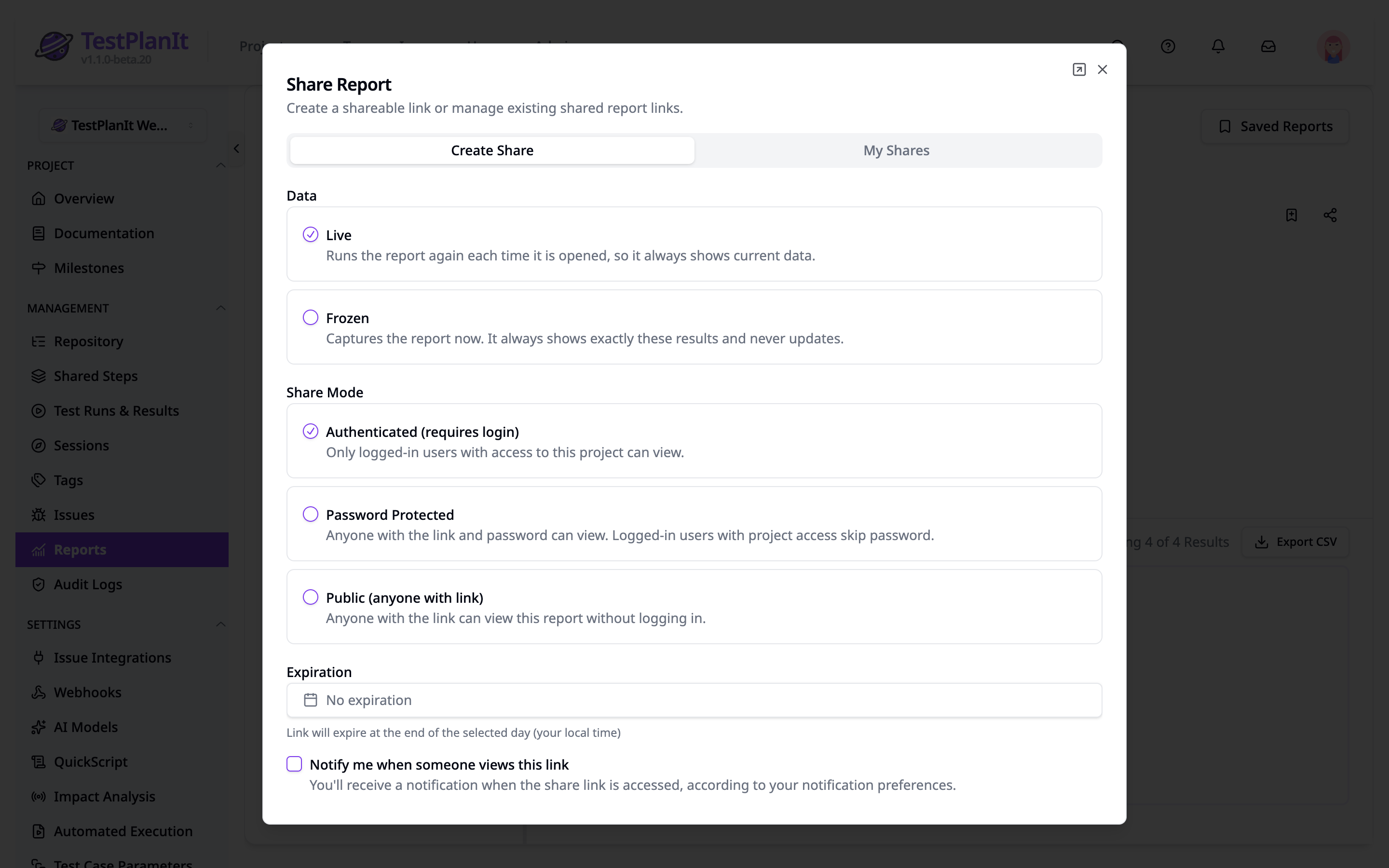
- It opens the Share Report dialog on the Create Share tab
-
Choose live or frozen data
- Live: re-runs the report each time the link is opened
- Frozen: keeps the results from now; see Live and Frozen Data
-
Choose the share mode
- Authenticated (requires login)
- Password Protected
- Public (anyone with link)
-
Configure the share
Expiration (optional)
- The link expires at the end of the selected day, in your local time
- Leave empty for no expiration
- Can be changed later
Notify me when someone views this link (optional)
- Sends you a notification when the link is viewed, delivered according to your notification preferences
- Can be toggled later from the share list
Title (optional)
- Defaults to the report name and the current date and time
Description (optional)
- Context for viewers, shown under the title
Password (Password Protected mode)
- Must meet the password policy your administrator set for accounts
- Enter it twice to confirm
- Stored only as a bcrypt hash
-
Create and copy the link
- Select Create Share Link
- The confirmation shows the URL, mode, notifications, views, and whether the data is live or frozen
- Select Copy to copy the URL, or open it in a new tab
Share Link Format
https://app.testplanit.com/share/A8j2KmPqR5vWxYz7BnC3DfG9HkL4MtN6pQ1sT0uVwXy
- 43-character random share key (256 bits of entropy)
- URL-safe characters only
- No locale prefix; each viewer sees the page in their own language
Managing Share Links
Where to Manage Shares
Project settings: open the project, then Settings → Manage Shares to see every share in the project.
Administration: Administration → Manage Shares lists shares across all projects, including cross-project shares.
Share dialog: the My Shares tab of the Share Report dialog lists the report shares you created.
Share List Columns
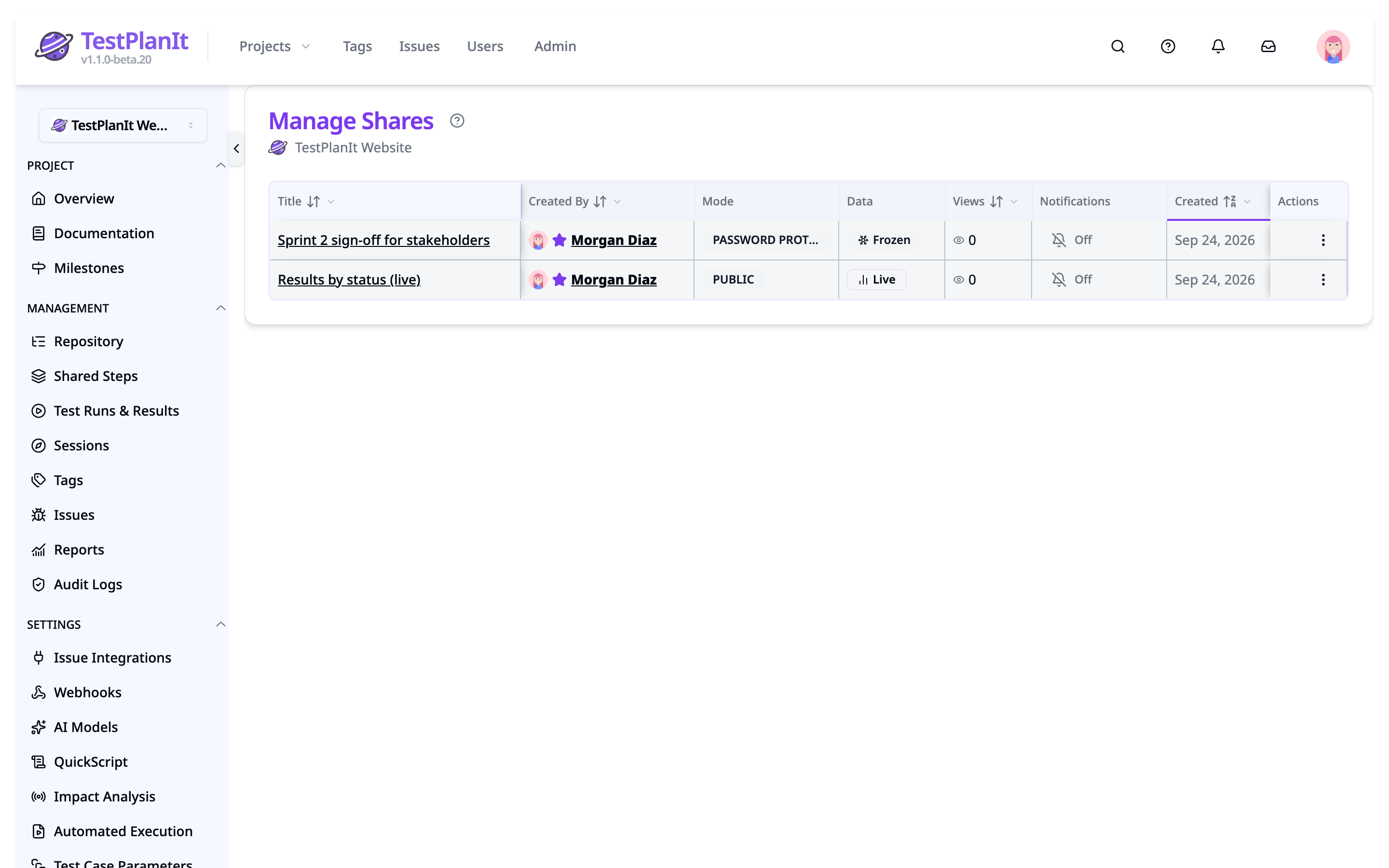
- Project (Administration only): the project the share belongs to
- Title: opens the share in a new tab; the description shows below it
- Created By (Manage Shares pages): who created the share
- Mode: Authenticated, Password Protected, or Public
- Data: Live or Frozen for report shares
- Views: how many times the link was viewed
- Notifications: whether view notifications are on
- Created: when the share was created
- Expires: the expiration date, or none
- Status: Active, Expired, or Revoked
Available Actions
Copy Link: copies the share URL to the clipboard.
Edit (active shares only): change the title, description, share mode, password, expiration date, and view notifications.
Toggle notifications (active shares only): turn view notifications on or off.
Revoke (active shares only): disables the link immediately. Viewers see a "Share Link Revoked" message. Revoking cannot be undone; create a new share if access is needed again.
Delete: removes the share from the lists and stops the link from working.
Accessing Shared Content
Public Share Access
- Open the share URL
- The report loads without signing in
- The report is read-only
Password-Protected Share Access
- Open the share URL
- Enter the password in the password gate
- The report loads
After 5 failed attempts on a link, further attempts from the same IP address are blocked for 15 minutes. The password gate shows how many attempts remain. Signed-in users with access to the project skip the password.
Authenticated Share Access
- Open the share URL
- If you are not signed in, you are sent to the sign-in page
- After signing in, a live link opens the report in the full app with all settings restored. A frozen link opens its frozen results.
Users without access to the project see an access-denied message.
Views and Access History
View Count
- A view is counted when someone opens the link
- Reloading the page in the same browser tab does not count another view
- The count appears in the share lists
Access History
Every access to a share link is recorded in the audit log with the viewer (or "Anonymous"), IP address, and time. See Audit Logging.
Notifications
When Notify me when someone views this link is on, the share's creator receives a notification each time a view is counted. It includes the share title and the viewer's name, or "Anonymous" for viewers who are not signed in. Notifications are delivered in the app and by email according to your notification preferences.
Reloading the page in the same browser tab does not send another notification.
Security Features
Share Keys
- 256 bits of entropy, generated with a cryptographically secure random source
- base64url encoded, 43 characters
Password Protection
- Stored as a bcrypt hash (10 rounds), never in plain text
- Must meet the account password policy set by your administrator
- 5 failed attempts per link and IP address within 15 minutes lock further attempts until the window resets
- A correct password issues a signed access token that is valid for one hour and only for that share. Changing the share's password invalidates tokens issued before the change.
Access Control
- Expiration and revocation are checked on every access, including for frozen links
- Deleted links stop working
Audit Logging
Share activity is recorded in the audit log:
SHARE_LINK_CREATED— a share link was createdSHARE_LINK_ACCESSED— a share link was viewedSHARE_LINK_PASSWORD_VERIFY— a password attempt was made on a protected link; recorded on both success and failure so repeated failures are visibleSHARE_LINK_REVOKED— a share link was revoked
Signed-In Team Members
Signed-in users with access to the project skip the password on password-protected links. For a live project report, a notification offers View in Full App to open the report in the application.
Multi-Tenant Security
- All queries are scoped to the current tenant
- Cross-tenant access is blocked
- Share management shows only the current tenant's shares
Best Practices
Choosing Share Modes
Use Authenticated for:
- Team members with project access
- Internal stakeholder reports
- Sensitive data requiring authentication
Use Public for:
- Public dashboards and metrics
- Open data sharing
- Non-sensitive information
Use Password-Protected for:
- Client reports and deliverables
- Partner collaboration
- Confidential external sharing
Use Frozen data for:
- Release sign-off and audits
- Reports that must keep the numbers from a point in time
Security Recommendations
Passwords:
- Use long passwords that mix character types
- Don't send the password through the same channel as the link
Expiration Dates:
- Set an expiration for temporary shares
- Revoke or delete shares that are no longer needed
Monitoring:
- Turn on view notifications for sensitive shares
- Review share access in the audit log
- Revoke compromised links immediately
Performance Tips
- Frozen links load stored results and never re-run the report
- Large live reports take longer to load
- Filter the report and set reasonable date ranges before sharing
Troubleshooting
"Share Link Expired" message
The share has passed its expiration date. Ask the share's creator for a new link. If you created it, edit the share and set a later date.
"Share Link Revoked" message
The share was revoked, and revoking cannot be undone. Ask the share's creator for a new link.
Access denied on an authenticated share
You don't have access to the project, or the report is a cross-project report and you are not an Admin. Ask a project owner for access, and check that you are signed in with the right account.
Password not working
- Passwords are case-sensitive; check Caps Lock
- After 5 failed attempts you are blocked for 15 minutes; the message shows when you can try again
- Ask the share's creator to confirm the password
Report not loading
- Check your connection and refresh the page
- Try another browser
- Contact your administrator if the problem persists
API Reference
ShareLink Model
{
  id: string;
  shareKey: string;              // 43-character random key
  entityType:                    // REPORT for report shares; SAVED_REPORT for
    | "REPORT"                   // private saved reports; SEARCH and
    | "SAVED_REPORT"             // REPOSITORY_VIEW for saved searches and views
    | "SEARCH"
    | "REPOSITORY_VIEW"
    | "TEST_CASE"
    | "TEST_RUN"
    | "SESSION"
    | "DASHBOARD";
  entityId: string | null;
  entityConfig: object | null;   // The stored report configuration
  projectId: number | null;      // Null for cross-project shares and saved reports
  createdById: string;
  mode: "AUTHENTICATED" | "PUBLIC" | "PASSWORD_PROTECTED";
  expiresAt: Date | null;
  notifyOnView: boolean;
  title: string | null;
  description: string | null;
  isRevoked: boolean;
  isDeleted: boolean;
  deletedAt: Date | null;
  viewCount: number;
  lastViewedAt: Date | null;
  createdAt: Date;
  updatedAt: Date;
  snapshot?: ReportSnapshot;     // Present for frozen links
}
ReportSnapshot Model
{
  id: string;
  shareLinkId: string; // One snapshot per frozen link
  payload: object; // The stored report results
  rowCount: number; // Rows kept
  totalRowCount: number; // Rows the report produced
  truncated: boolean; // True when rows were cut to the row limit
  capturedById: string;
  capturedAt: Date;
}
ShareLinkAccessLog Model
{
  id: string;
  shareLinkId: string;
  accessedById: string | null; // User ID if authenticated
  ipAddress: string | null;
  userAgent: string | null;
  wasAuthenticated: boolean;
  accessedAt: Date;
}
Future Enhancements
- Share other content: individual test cases, test runs, sessions, and dashboards
- Custom branding for public shares
- Embed support for websites
- PDF export from shares
- Expiration reminders before a share expires
- Access restrictions such as IP allow lists